Sample Management#
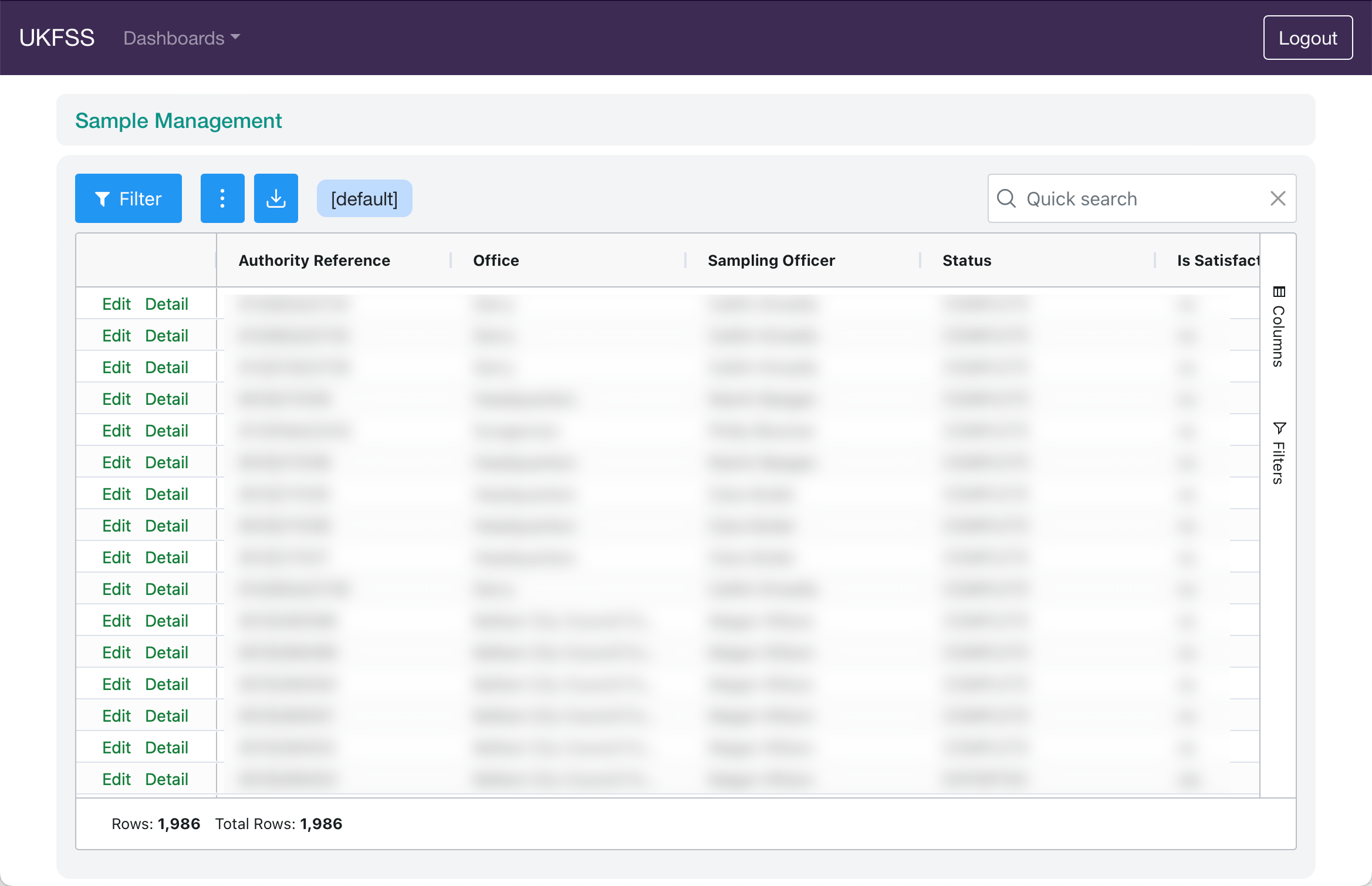
The Sample Management page is used to track and update the workflow status of samples through the laboratory process.
Filters#
Use the server-side filter to control which samples are shown:
Date Sample Taken — filter by date range
Authority/Group — filter by reporting group
Sample Status — select one or more statuses
Show Archived Samples — include archived samples
Data Columns#
In addition to standard sample identification fields, the management view includes workflow tracking columns:
Column |
Description |
|---|---|
Status |
Current sample status |
Satisfactory |
Test outcome: Yes / No / N/A |
Certificate Received Date |
When the lab certificate was received |
Letter Sent Date |
When the result letter was sent |
Invoice Paid Date |
When the invoice was paid |
Notes |
Free-text notes |
Purchase / Analysis Cost |
Recorded costs |
Port Sample |
Flag for port of entry samples |
Resample Required |
Whether a resample is needed |
Resample Reference |
Reference number for the resample |
Sent to Lab Date |
Date the sample was sent to the laboratory |
Returned from Lab Date |
Date the sample was returned from the laboratory |
Performance Columns#
The following columns use colour coding to highlight performance against targets.

Column |
Green |
Amber |
Red |
|---|---|---|---|
Outstanding Days |
≤ 28 days |
28–42 days |
> 42 days |
Turnaround Days |
≤ 28 days |
28–42 days |
> 42 days |
Lab Outstanding Days |
Within target |
Approaching |
Exceeded |
Lab Turnaround Days |
Within target |
Approaching |
Exceeded |
Editing a Sample#
Click Edit on a row to open the inline edit form and update the sample record.
To view the full sample record, see Sample Detail.